Push notifications have one weakness. You know very little about what the people on your list want.
Someone clicked Allow once. Usually you have no name and no email. You can see their browser, device, and country, and which notifications they clicked, but not which product they are hoping for.
So when you send something, you are often guessing. You pick a product, send it to everyone, and hope enough of them care.
The buttons on your product pages are how that changes. They are the one place where a subscriber tells you exactly what they are waiting for.
First, What These Buttons Are Not
It is important to understand this first, because many people think the opposite.
These buttons do not ask anyone to sign up for notifications. They do not show a permission popup, and tapping one will not turn a stranger into a subscriber.
They only show up for people who already get your notifications.
That makes sense when you think about how push works. To send someone a back in stock alert, you need permission to reach their browser. If they never allowed notifications, there is nowhere to send the message. The button cannot create that permission, so it waits until it is already there.
Growing your list is a different job, done by the opt-in prompt. We cover that in our permission prompt guide. These buttons come after that, and do something a prompt cannot do.
What They Actually Do
They turn one big list of strangers into many small lists of people who want a specific product.
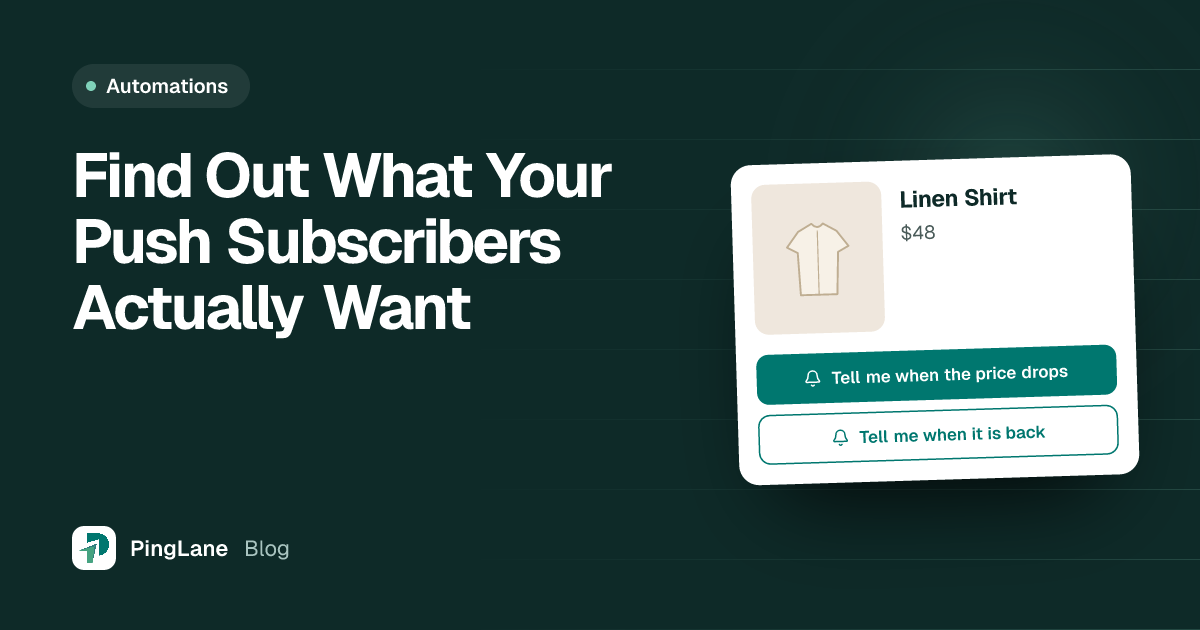
The button sits on a product page. It comes in two forms:
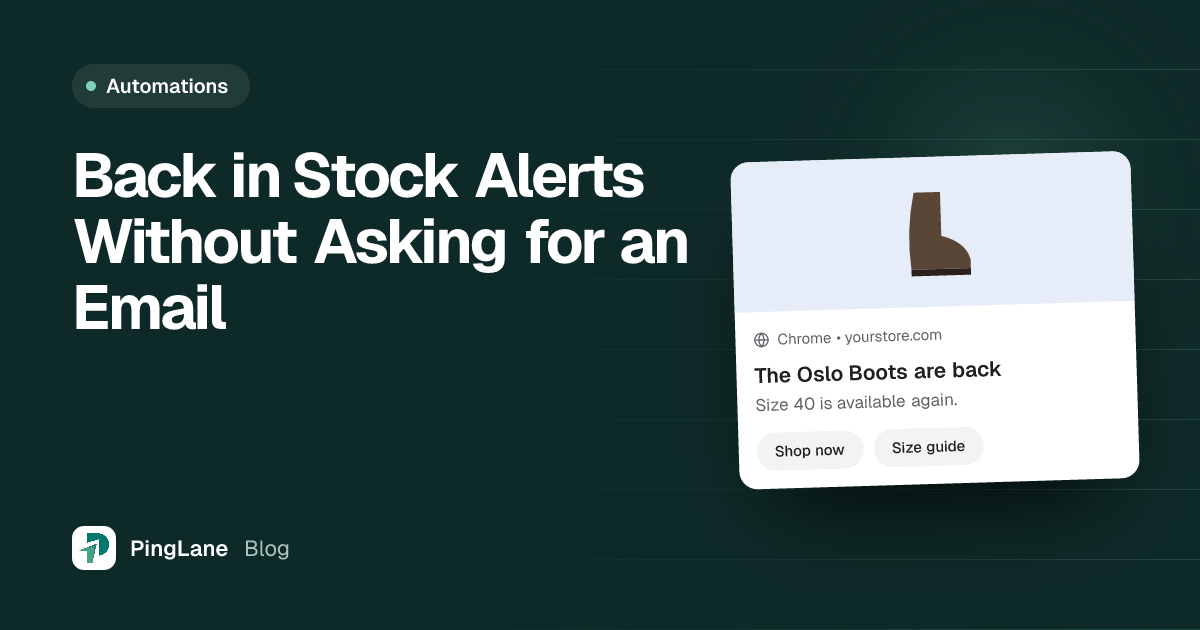
- Notify Me, on a product that is sold out. “Get a message when this item is back in stock.”
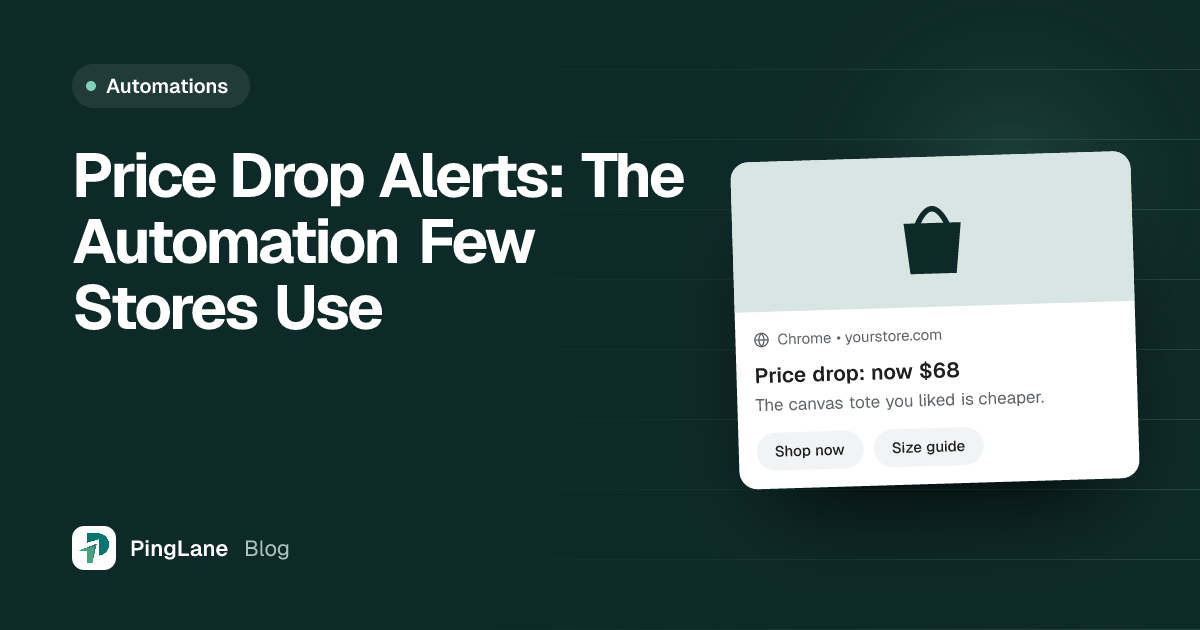
- Alert Me, on a product someone thinks is too costly. “Get a message when the price drops below what it is now.”
When a subscriber taps either one, something useful happens. They are no longer just subscriber number 4,182. They are now a person waiting for a navy linen shirt in size medium.
You did not have to ask them anything. You did not run a survey. They told you by tapping a button, at the exact moment they cared.
Why This Works Better Than Guessing
Think about the two ways you could send a message about a restocked product.
Without the button, you send it to your whole list. Most of those people never looked at the item. To them it is a random ad. Some ignore it, some get annoyed, and a few turn off notifications. The few people who really wanted it are hidden among everyone else, and you cannot find them.
With the button, you send it only to the people who asked about that product. Every single person getting it asked for it. Nobody is annoyed, because nobody got a message about something they do not care about.
It is the same product and the same message, but the result is very different, because you knew who to send it to.
This also keeps your list healthy. People unsubscribe when messages feel pointless. Sending fewer messages that match what shoppers want keeps them subscribed until they are ready to buy.
What Each Tap Means
Each tap is also a small signal from your shoppers.
A Notify Me tap means someone wants a product you cannot sell them yet. When you restock, they hear about it first.
An Alert Me tap means someone wants a product, but not at today’s price. Nobody fills in a form to say your product costs too much. They just leave. This button is the closest you will get to hearing it.
After an alert goes out, the automation’s report shows how many people clicked and the sales that followed.
Making Them Look Like Your Store
People only use a button if it looks like a natural part of your store, not something added later.
You can customize:
Where it sits. Bottom left or bottom right of the product page, with space from the edge so it does not cover your buy buttons.
The colors. Background color, text color, button text color, and the bell icon can all match your store.
The button text. The defaults are Notify Me and Alert Me. Change them to whatever words fit your brand best.
The wording. Both the invite line and the thank-you message shoppers see after tapping can be rewritten.
The movement effect. A small animation helps people notice the button without being annoying. You can choose pulse, bounce, floating, and a few others. Pulse is the default.
A few practical rules: Do not cover the add-to-cart button on phones. If you already have a customer chat bubble in one corner, put this button in the other. And always check it on a real phone to make sure buttons do not overlap.
Which One Should You Turn On?
Both start switched off, because each needs its button added to your product pages first.
Turn on Notify Me if you run out of popular items often, sell small batches, or have sizes that sell out while the product stays listed.
Turn on Alert Me if your products cost enough that people stop and think, you run sales through the year, or you sell things people compare prices on.
Once a button is collecting taps, the automation behind it does the rest. We cover those in the back in stock guide and the price drop guide.
Common Questions
Do these buttons ask visitors to sign up for notifications?
No. They only show to people who already get your notifications. Growing your list is the permission popup’s job.
What happens if a visitor is not a subscriber?
They will not see the button. Your permission popup is what invites them to sign up first.
Does the shopper give an email address?
No. You never learn who they are. They tap once and you can reach them.
Should I use the permission popup and these buttons together?
Yes, and in that order. The prompt builds your list. The buttons tell you what the people on your list want. With only one of them, you either have nobody to message, or you do not know what to send.
Can I change the wording and colours?
Yes. Button text, the invite line, the thank you message, colours, position, and the small effect can all be changed.
What happens after someone taps it?
They see a short thank you, and PingLane starts watching that product for them. When the stock or the price changes, the message sends on its own.
Stop Sending to Everyone
A common waste in push marketing is sending a message about one product to thousands of people who never looked at it.
Your subscribers already know what they want. These buttons let them tell you, so you can send each person the message they asked for.
Install PingLane from the Shopify App Store and let your subscribers show you what to send.